Apply code to get gift
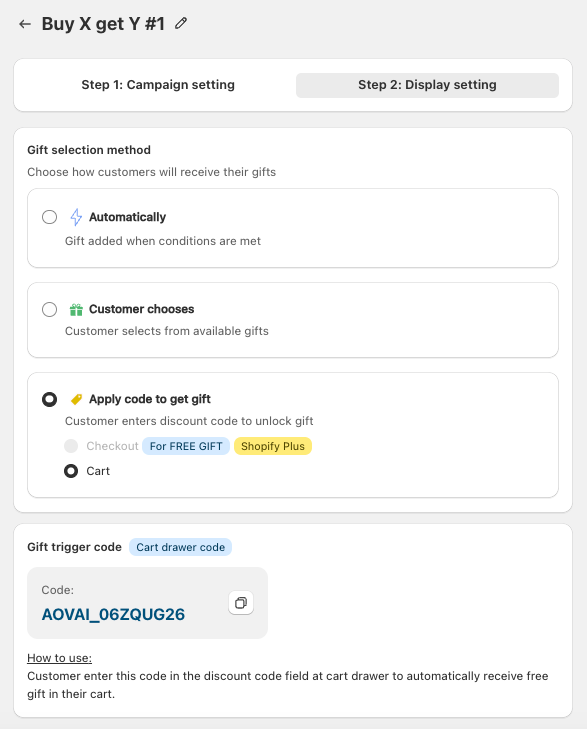
This feature allows merchants to create campaigns where customers unlock a gift by entering a discount code. The app supports two modes:
- Apply code in cart: customer enters the code directly in the cart page or cart drawer. Available on Horizon theme and other compatible themes. Supports Buy X Get Y, Gift with Cart Value, Gift with Collection Value, and Gift with Quantity Purchase campaigns.
- Apply code at checkout: customer enters the code at Shopify checkout. Shopify Plus only, and free gift campaigns only (does not apply to discounted-gift configs).
When the code is applied and the campaign conditions are met, the gift is automatically added to the cart.
If a customer's cart no longer matches the campaign trigger when the code is applied, the gift is removed automatically.
Note: The in-cart option is currently supported on the Horizon theme and other compatible themes. If your theme does not support discount code entry in the cart drawer, the option will be disabled, please contact us for integration.
Applicable Campaign Types
- Apply code in cart: Buy X Get Y, Gift with Cart Value, Gift with Collection Value, Gift with Quantity Purchase.
- Apply code at checkout (Shopify Plus only, free gift only): Buy X Get Y, Gift with Cart Value, Gift with Collection Value, Gift with Quantity Purchase.
How to Set It Up
Step 1. Create a Campaign
- From your app dashboard, click Create Campaign.
- Choose Buy X Get Y as the campaign type.
Step 2. Configure Gift Code
- In the display settings, scroll to Gift selection method.
- Select Apply code to get gift.
- You’ll see a gift trigger code (default is
AOVAI_XXXXXX). - Edit this code if you want to customize it (e.g., change to
SPRINGSALE).
Step 3. Save Campaign
-
Click Save campaign.
-
You’ll see a success message:
“Campaign saved successfully. Gift code is now active.”
-
The system will display instructions showing your active gift code and how to use it.
Customer Experience
- Customer adds qualifying products to their cart.
- In the cart drawer/cart page, the customer enters your gift code (e.g.,
SPRINGSALE) in the discount code field. - If the code is valid and the conditions are met, the gift will automatically appear in the cart.
Theme Compatibility
- Horizon theme: Supported. Customers can enter codes directly in the cart drawer.
- Other themes: Not supported.
-
The option will be disabled in settings.
-
You will see a tooltip:
“This option is not supported on your current theme. Please chat with our support team to connect with technical expert team.”
-
Best Practices
- Use simple and memorable codes (e.g.,
FREESHIRT,WINTERGIFT). - Share the code clearly in your marketing campaigns so customers know how to unlock their gift.
- Test the feature on your store before going live to make sure the gift is applied correctly.