Promotion Badge
Learn how to set up and customize the Promotion Badge to highlight active offers directly on product images.
Promotion Badge is used for Buy X Get Y campaign only.
What is Promotion Badge?
The Promotion Badge is a visual icon or label that appears on product images, highlighting special offers like free gifts or discounts. It is strategically placed to immediately catch customers' attention and clearly communicate active promotions tied to specific products.
Why to use Promotion Badge?
Draw immediate attention to offers
An effective Promotion Badge catches the customer's eye right away to special offers and promotions.
Drive sales and boost AOV
By reducing the need for customers to search for deals, a Promotion Badge streamlines the shopping experience and boosts conversions. It also serves as an effective trigger for impulse purchases, contributing to higher AOV.
Improve customer experience
A Promotion Badge makes it easier for customers to spot promotions without having to hunt for deals in a separate section, enhancing their overall shopping experience.
How to set up Promotion Badge?
Step 1: Access the Promotion Badge settings
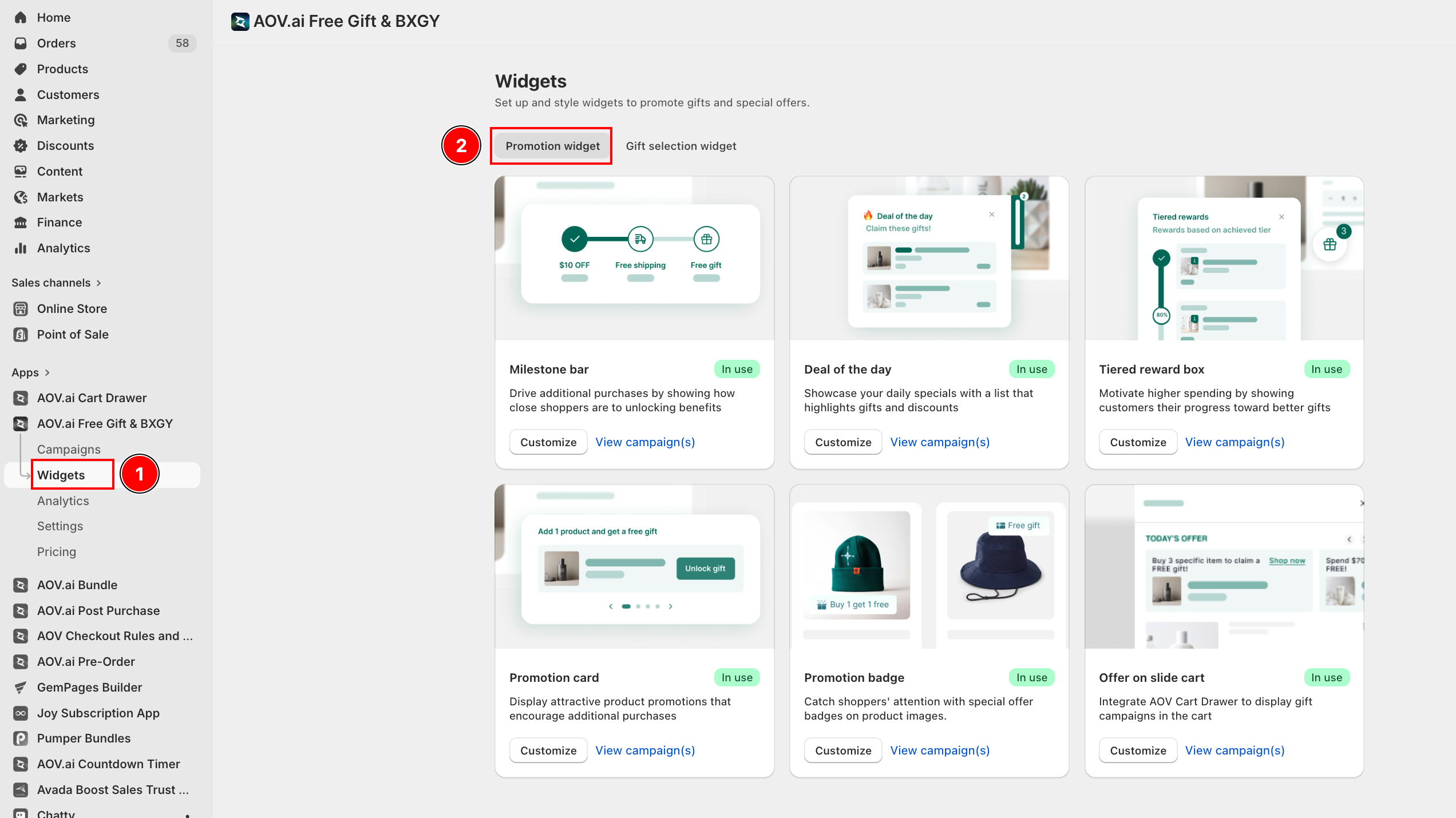
Go to Widgets in the left sidebar > find Promotion Badge > click Setup.
Step 2: Choose badge position
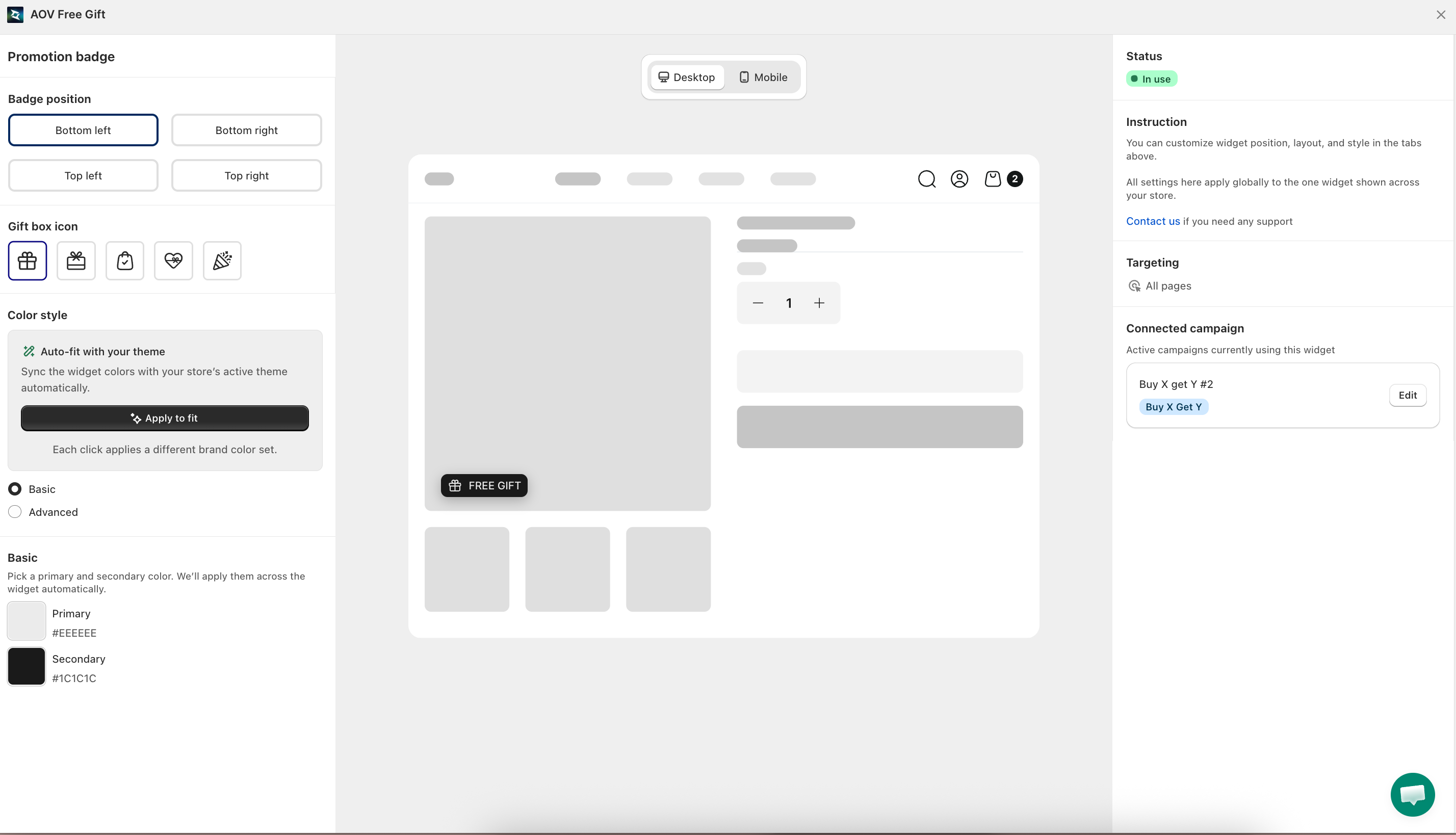
Under Badge position, select where the badge appears on product images:
- Bottom left (default)
- Bottom right
- Top left
- Top right
The preview on the right updates instantly so you can check placement against a sample product card.
Step 3: Choose an icon
In the Gift box icon row, pick one of the five available icon styles to display inside the badge.
Step 4: Set up the color style
In the Color style section, choose how badge colors are applied:
- Auto-fit — automatically syncs colors with your store's active theme. Click Apply to fit to apply. Each click cycles through different brand color combinations.
- Basic — manually set a Primary and Secondary color applied consistently across the badge.
- Advanced — fine-tune individual color values for each element of the badge.
Final step: Preview and save
Check the preview panel on the right to confirm the badge looks right, then click Save.
The Promotion Badge is now active on product pages where your Buy X Get Y campaigns apply.