Gift with Collection Value
Discover how to establish a Gift with Collection Value campaign to give your customers better purchasing experience with our guideline below.
Gift with Collection Value campaign allows customers to receive a free gift when their purchases from a specific collection meet a minimum spend threshold.
How to set up a Gift with Collection Value campaign?
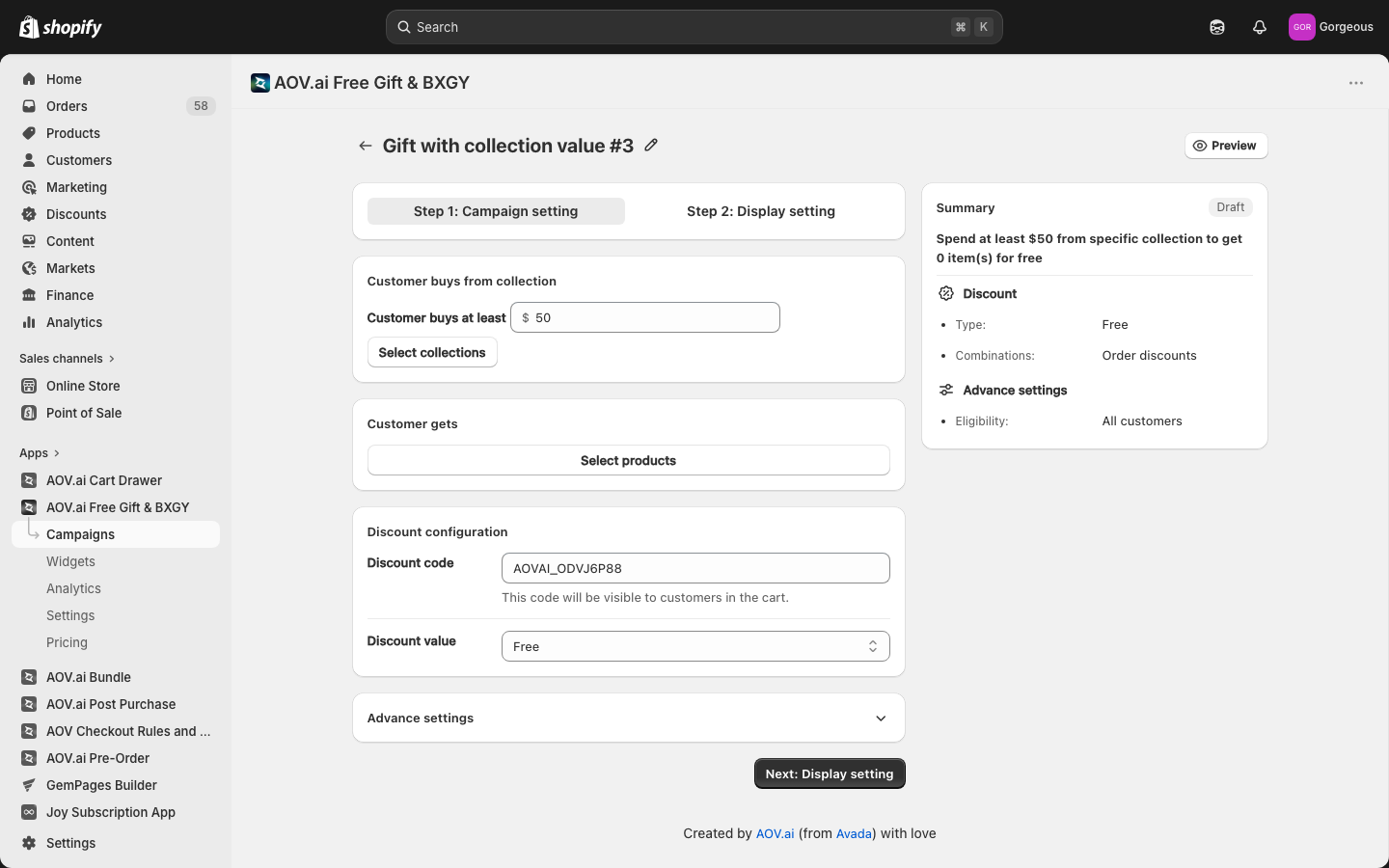
Step 1: Select the campaign
From the app homepage, click Create Campaign, then choose Create Campaign on Gift with Collection Value
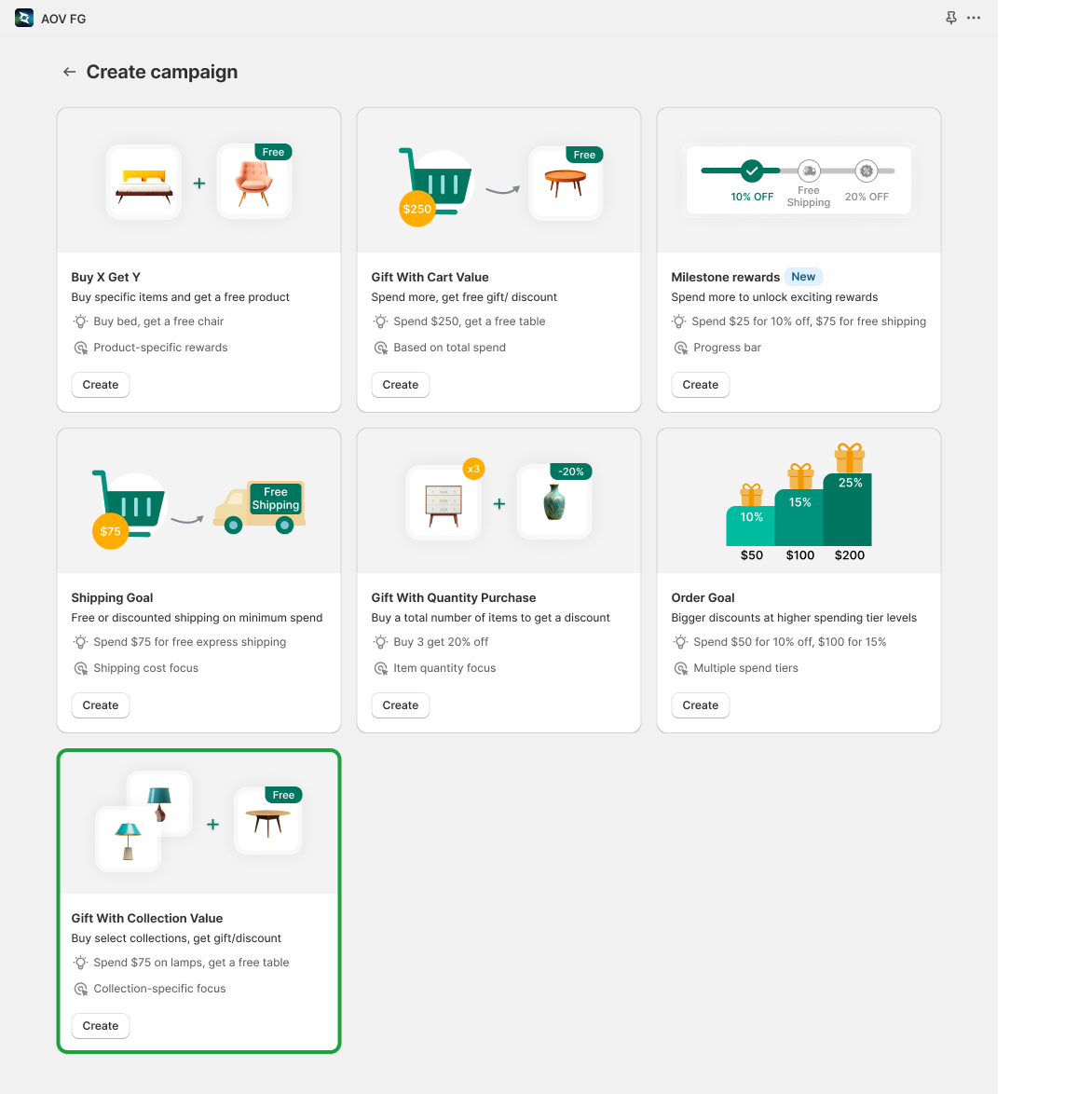
Step 2: Set up Campaign Trigger
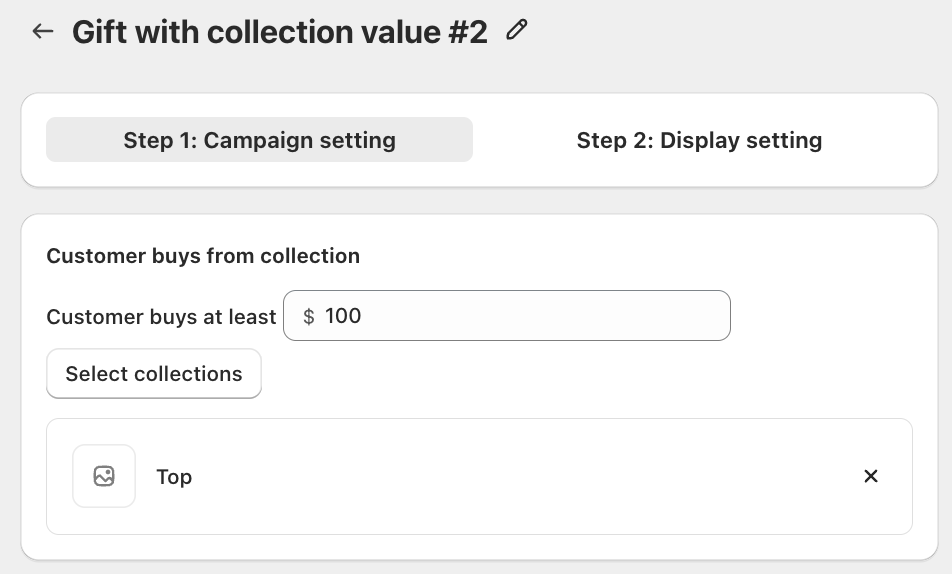
Select collection(s)
Click Select collections to choose the collection(s) that apply to this campaign. This could be a specific collection, such as "Best Sellers" or "New Arrivals".
Minimum collection value
Enter a minimum spend amount from the selected collection(s) that customers must reach to qualify for the gift.
Step 3: Choose the gift for your campaign
3.1 Gift selection
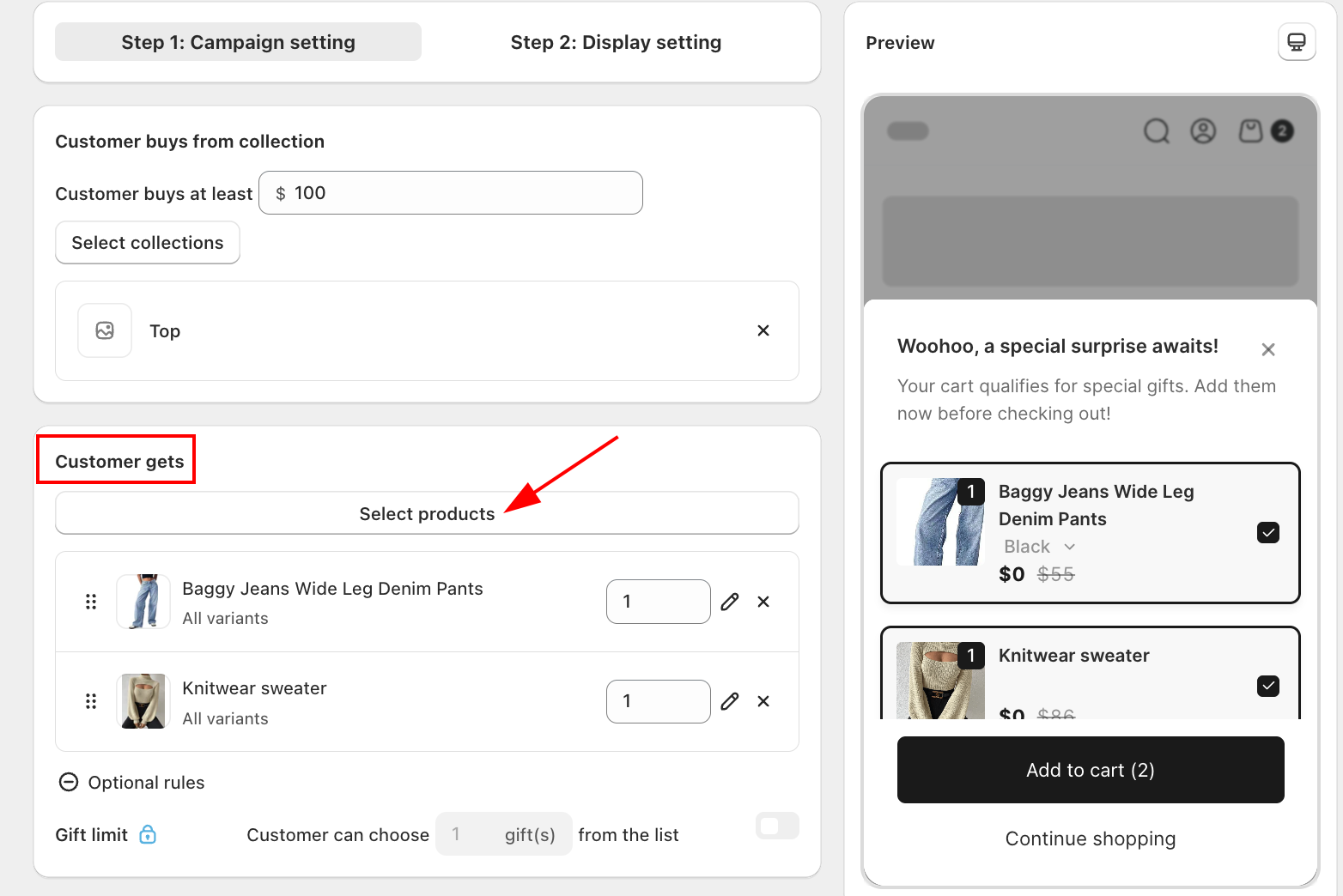
Click Select products to pick the product(s) you want to offer as a gift. You can add multiple gift options for customers to choose from.
- You can adjust the quantity of each gift product customers will receive.
- If a gift has multiple variants, you can choose a specific variant or allow customers to select their preferred one (shown as "All variants").
3.2 Gift limit (optional)
Enable Gift limit to set the maximum number of gifts a customer can choose from the list. For example, setting it to 1 means the customer picks only 1 item from all available gift options.
Step 4: Configure discount
The system auto-applies a discount code to your gift. You can edit the code as you like, and it will be visible to customers in the cart.
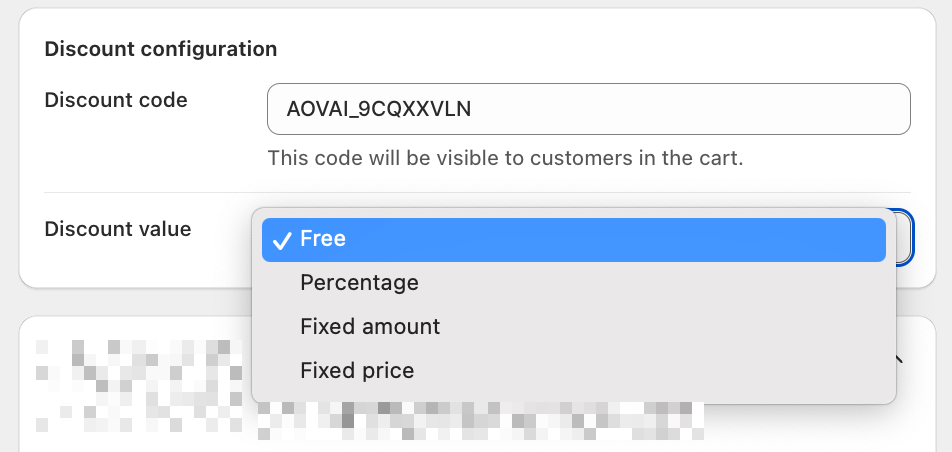
Choose the Discount value type to apply to the gift:
- Free: The gift is given at no cost to the customer.
- Percentage: Apply a percentage discount off the gift's original price.
- Fixed amount: Reduce the gift price by a fixed dollar amount.
- Fixed price: Set a specific fixed price for the gift regardless of its original price.
Step 5: Advanced settings
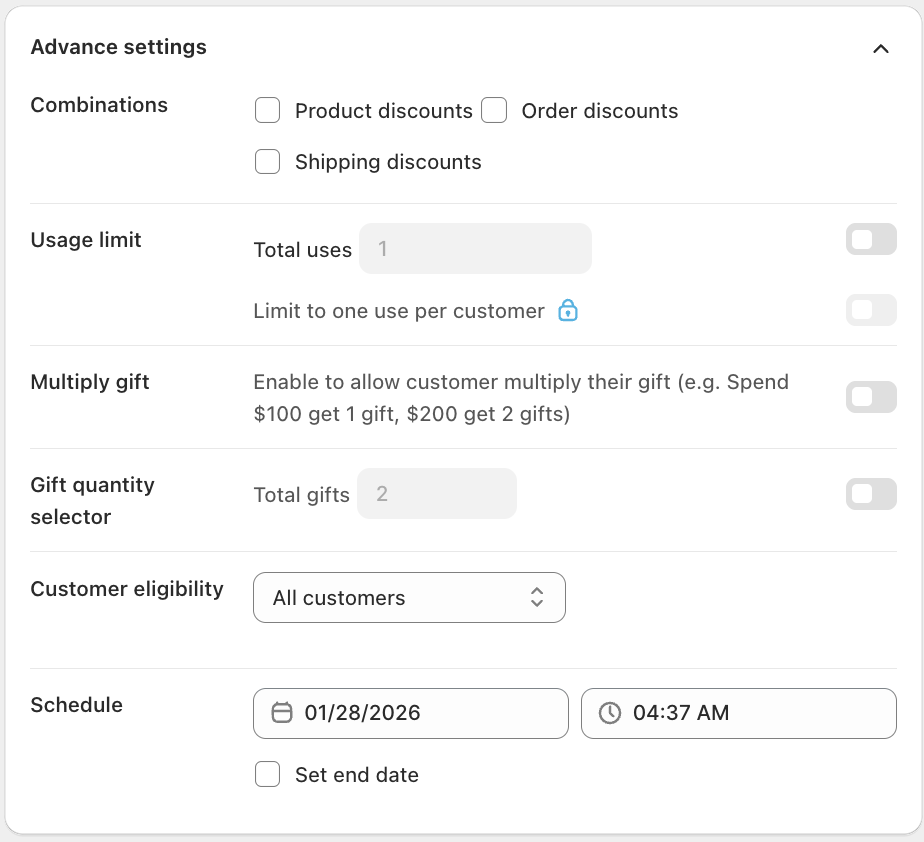
5.1 Discount combination
You can let your customers combine this discount with other different types (from Shopify or other campaigns) to let them have the best deal based on their cart. Other discounts you can choose to combine are:
- Product discounts
- Order discounts
- Shipping discounts
5.2 Usage limit (optional)
- Total uses: To create urgency and push customers to act, consider enabling Total uses to limit how many times the gift is available overall.
- Limit to one use per customer: To avoid customers receiving too many gifts from a single discount, you can enable this to restrict each customer to one redemption.
The app will detect and enforce the one-time use per customer if the customer is logged into their member account. If the customer checks out as a guest, this restriction may not apply.
5.3 Multiply gift (optional)
Enable this option to let customers earn an additional gift for each multiple of the threshold collection value spent.
- For example: If the threshold is $50 and a customer spends $150 from the selected collection(s), they receive 3 gifts.
5.4 Gift quantity selector (optional)
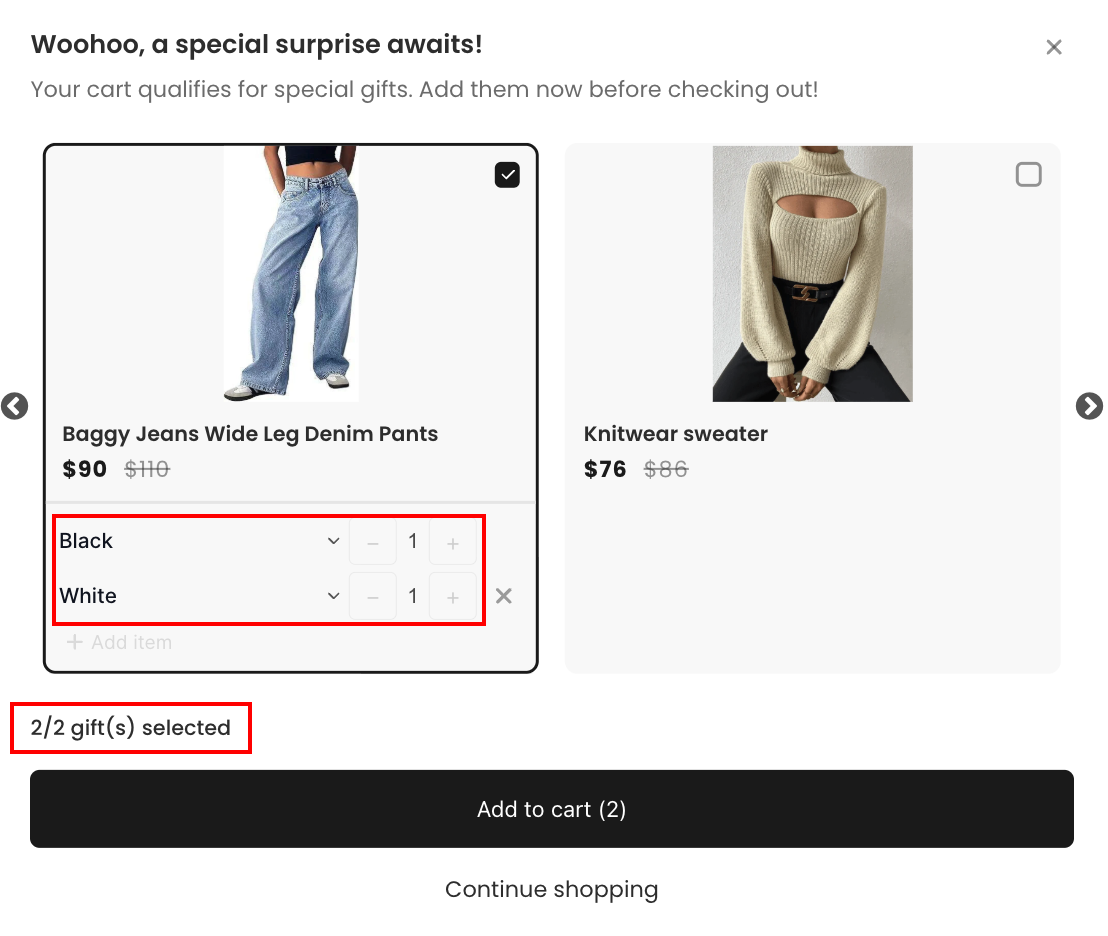
Set the maximum total number of gifts a customer can receive. When enabled, enter the value in the Total gifts field.
With this feature, customers can select the same gift product multiple times up to the limit you set, and they can choose different variants for each selection, for example, selecting 1 Black and 1 White of the same item.
5.5 Customer eligibility
This section lets you control who can see and redeem this campaign. You can choose to make the promotion available to everyone or limit it to specific groups.
- All customers: The campaign will apply to anyone who meets the conditions, no restrictions.
- Specific link: Only customers who click on a unique campaign link will see or access the promotion.
- Customer location: Limit the campaign to customers from specific countries or regions.
- Specific customer segment: Choose specific customer segments to exclude from this promotion.
The app uses existing segments from your Shopify admin. If you need to filter a custom segment, please create one in Customers > Segments in your Shopify admin.
5.6 Schedule
Set when your campaign is active. The campaign will only be shown to customers within the defined time window.
- Start date: Select the date and time when the campaign begins.
- End date (optional): Enable Set end date and pick a date and time to automatically stop the campaign.
Step 6: Set up appearance
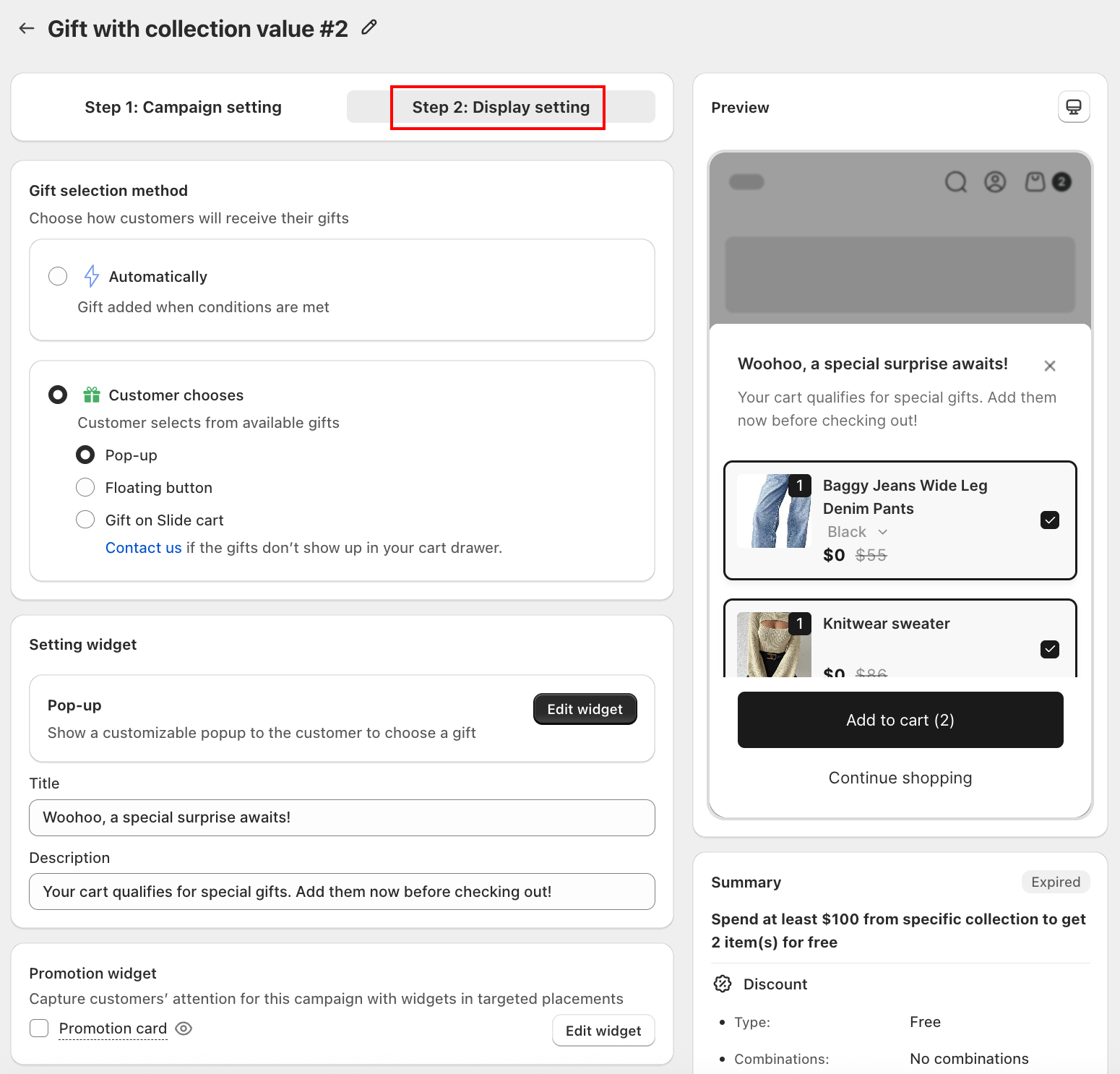
6.1 Gift selection method
Choose how customers will receive their gifts. Two modes are available:
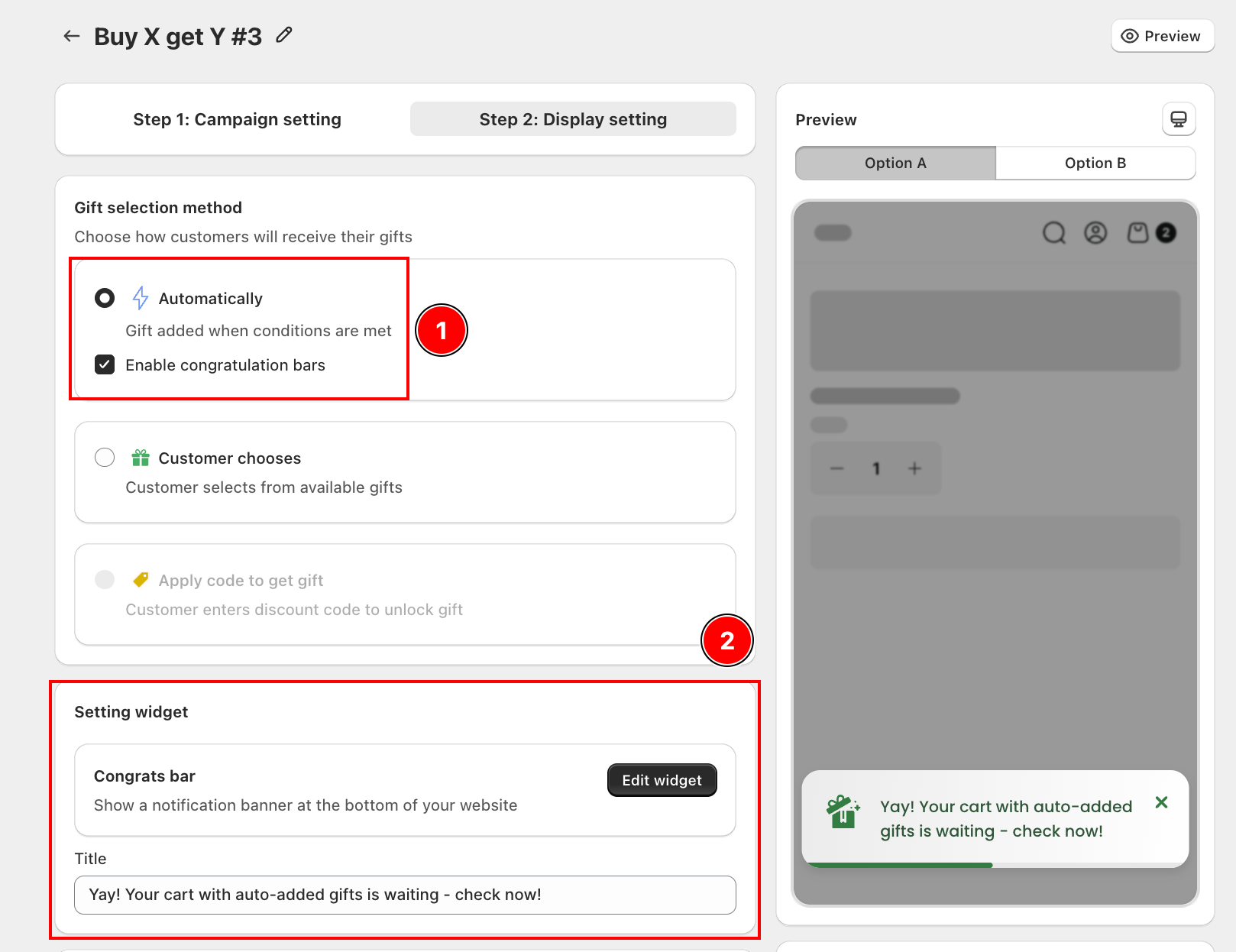
- Automatically: The gift is added to the cart automatically when conditions are met. No action needed from the customer.
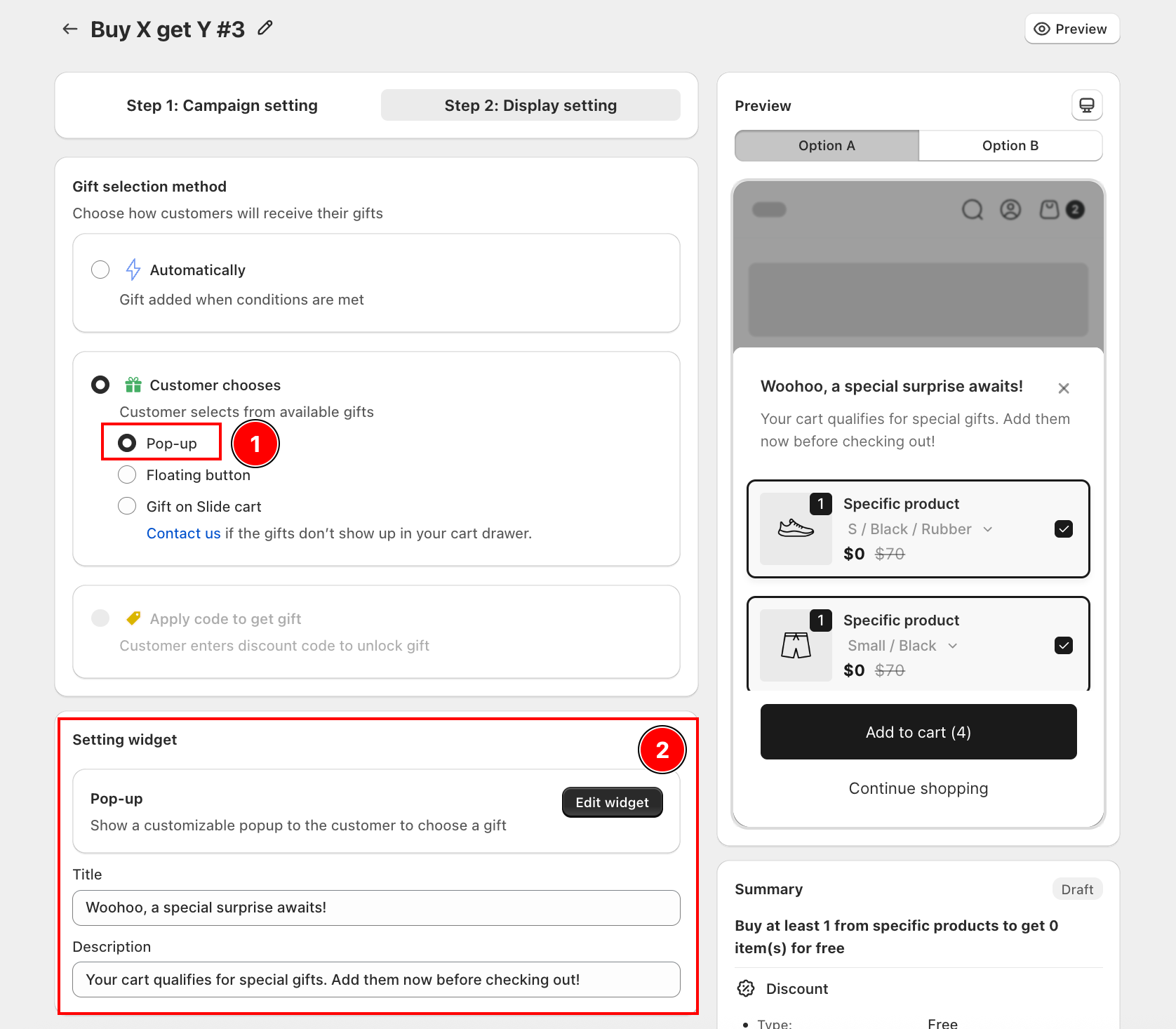
- Customer chooses: The customer selects their preferred gift from a list. Three display options are available:
- Pop-up: A pop-up appears for the customer to select their gift.
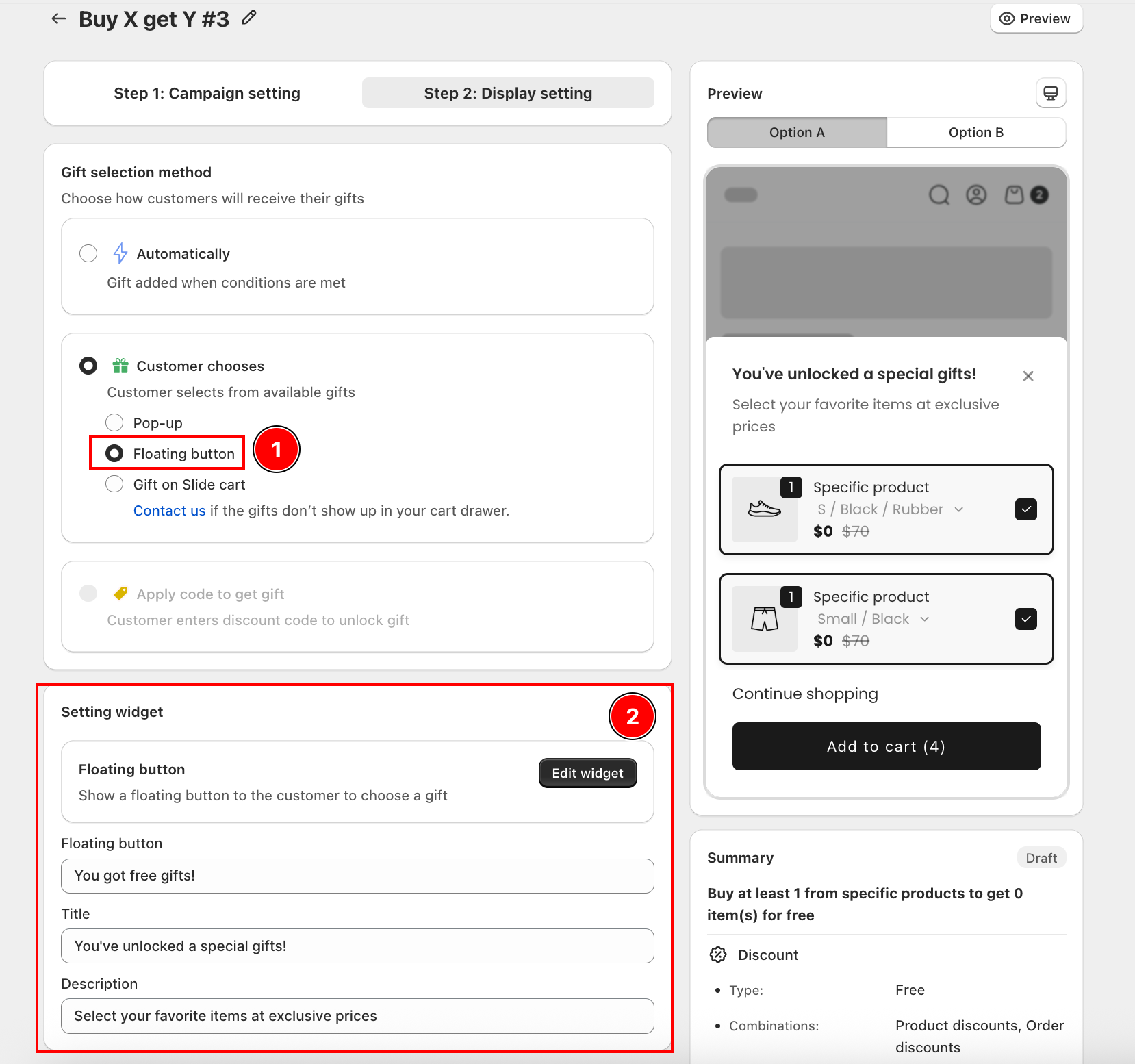
- Floating button: A floating button appears on the page. Customer clicks it to open and choose from the gift list.
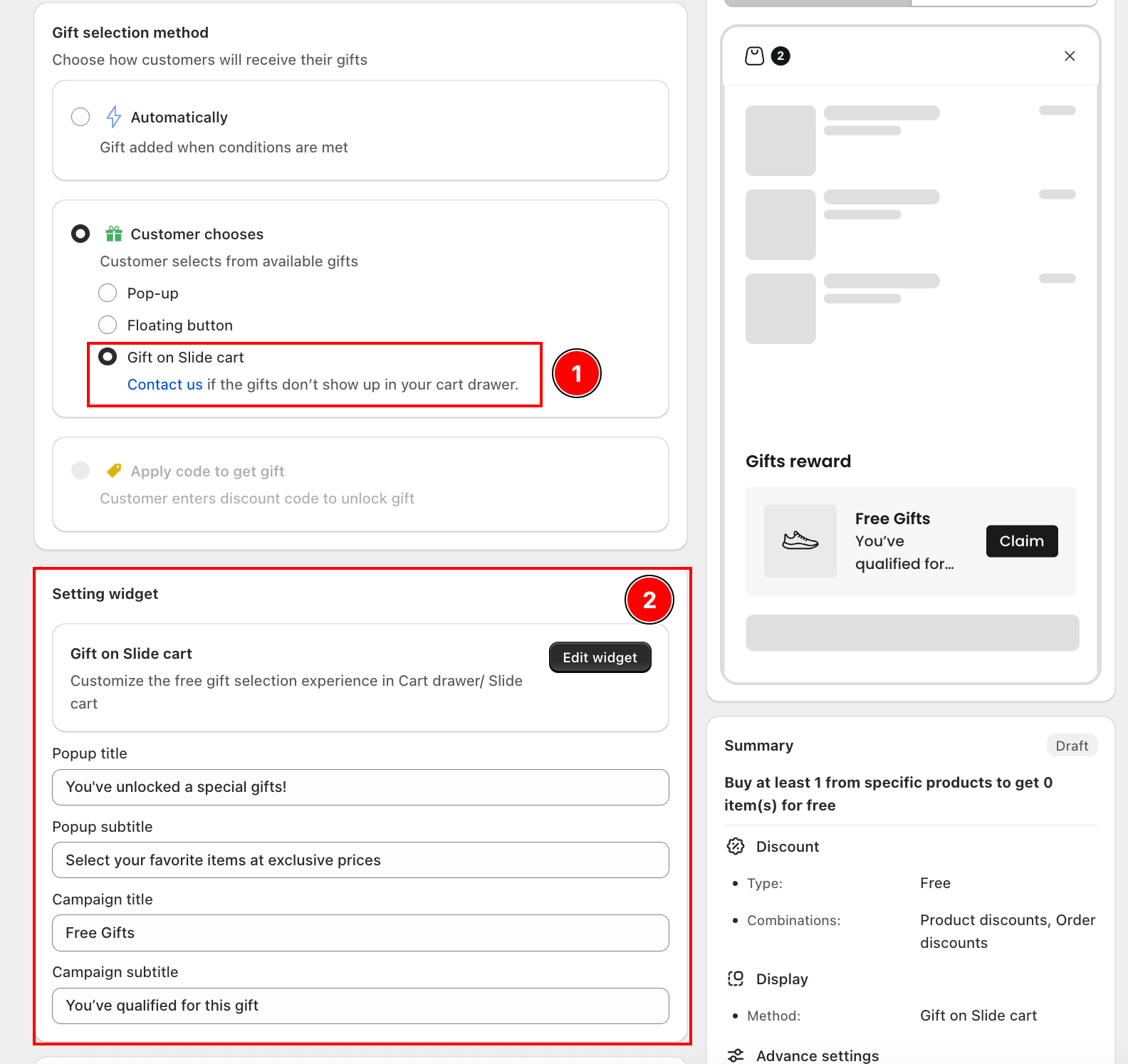
- Gift on Slide cart (cart drawer): Customer picks the gift directly inside the cart drawer.
6.2 Setting widget
The Setting widget section updates automatically based on the gift selection method you choose in 6.1. Each method exposes its own set of text fields you can customize.
Automatically, Congrats bar
When Automatically is selected, the Setting widget shows the Congrats bar configuration. You can edit the notification bar text that appears when the gift is auto-added to the cart.
- Title: The message shown in the congratulation bar (e.g., "Yay! Your cart with auto-added gifts is waiting - check now!")
Customer chooses, Pop-up
When Pop-up is selected, the Setting widget shows the Pop-up configuration.
- Title: The headline of the pop-up (e.g., "Woohoo, a special surprise awaits!")
- Description: The body text shown below the title (e.g., "Your cart qualifies for special gifts. Add them now before checking out!")
Customer chooses, Floating button
When Floating button is selected, the Setting widget shows the Floating button configuration.
- Floating button: The label displayed on the floating button (e.g., "You got free gifts!")
- Title: The headline shown inside the gift selection panel (e.g., "You've unlocked a special gift!")
- Description: The supporting text inside the panel (e.g., "Select your favorite items at exclusive prices")
Customer chooses, Gift on Slide cart
When Gift on Slide cart is selected, the Setting widget shows the Gift on Slide cart configuration.
- Popup title: The headline of the gift selection pop-up (e.g., "You've unlocked a special gift!")
- Popup subtitle: The supporting text below the title (e.g., "Select your favorite items at exclusive prices")
- Campaign title: The label shown on the gift reward inside the cart drawer (e.g., "Free Gifts")
- Campaign subtitle: The secondary label below the campaign title (e.g., "You've qualified for this gift")
6.3 Promotion widget
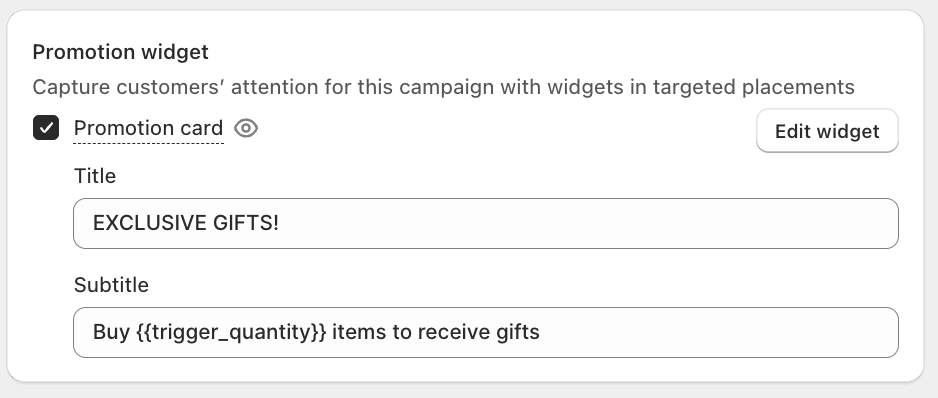
Set up the promotion widget to capture customers' attention directly on the product page.
Promotion card is available for Gift with Collection Value campaigns. You can customize:
- Title: The headline of the promotion card (e.g., "EXCLUSIVE GIFTS!")
- Subtitle: The message shown to customers. Supports the
{{trigger_quantity}}variable which auto-fills the required quantity (e.g., "Buy{{trigger_quantity}}items to receive gifts")
Once you've completed all the setup steps, take a moment to review your campaign settings to make sure everything looks correct. Then, click Save to finalize your campaign.
To make it visible on your storefront, go to Online Store > Theme > Customize > App Embeds and enable the AOV.ai Free Gift app.
Need help
- Live chat support: Get real-time help directly inside the app. Click the chat icon in the bottom-right corner of your dashboard.
- Email us: For in-depth questions or technical issues, email us at: win@avada.io Response time: within 24 hours on business days.