Lowest priced gift
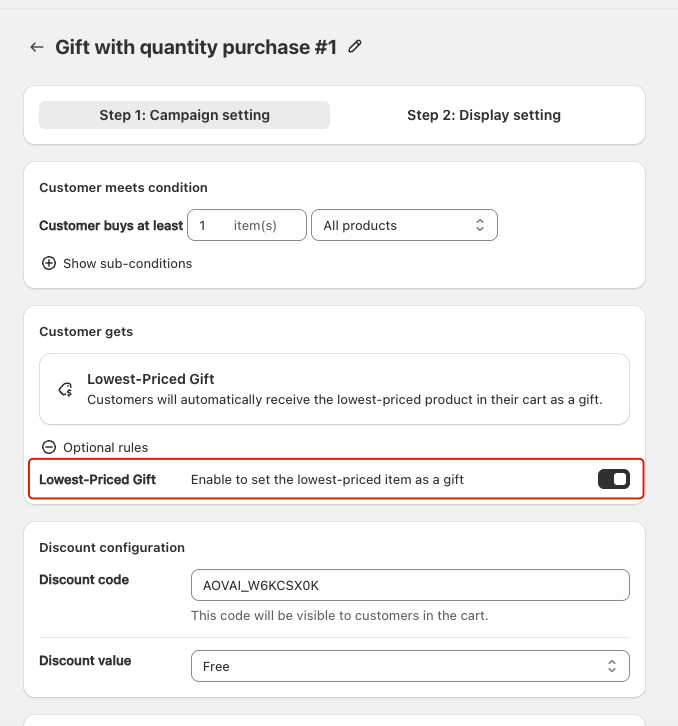
The Lowest-Priced Gift feature allows merchants to automatically set the lowest-priced item in the customer’s cart as the free gift.
Lowest priced gift
Applicable Campaign Type
- Gift with quantity purchase
How it Works
When enabled, the system automatically identifies the lowest-priced item in the cart that meets the campaign conditions. That item will be set as the customer’s free gift.
- If the customer adds multiple eligible items, the system always chooses the lowest-priced product.
- The selected gift is automatically applied to the cart with a discount value of Free.
Example
- Campaign rule: Buy at least 1 item from All Products.
- Customer adds 3 items to the cart:
- Jacket: $70
- Shoes: $50
- T-shirt: $20
- The app automatically sets the T-shirt ($20) as the free gift.
Setup Instructions
- Create or edit a Gift with quantity purchase campaign.
- Scroll to the Customer gets section.
- Under Optional rules, enable Lowest-Priced Gift.
- Save and activate the campaign.
Once enabled, the system will handle gift assignment automatically based on the lowest-priced item.
Multiply Lowest-Priced Gift
The Multiply Lowest-Priced Gift feature allows merchants to give customers multiple free gifts based on the number of trigger products in their cart.
- The gift is always the lowest-priced item in the customer’s cart.
- The more items the customer buys, the more free gifts they automatically receive.
- Gifts are added automatically, without the customer having to make a selection.
How it Works
When enabled, the system calculates the number of free gifts a customer receives using the following formula:
Number of gifts = (Number of products in cart ÷ Trigger quantity required in campaign)
- If the result is not a whole number, the system rounds down.
Example:
- Campaign rule: Buy 2 items → Get 1 lowest-priced gift
- Customer adds 5 items to the cart
- Calculation: 5 ÷ 2 = 2.5 → Rounded down = 2 gifts
Setup Instructions
- Create or edit a Gift with quantity purchase campaign.
- Go to the Lowest-Priced Gift section.
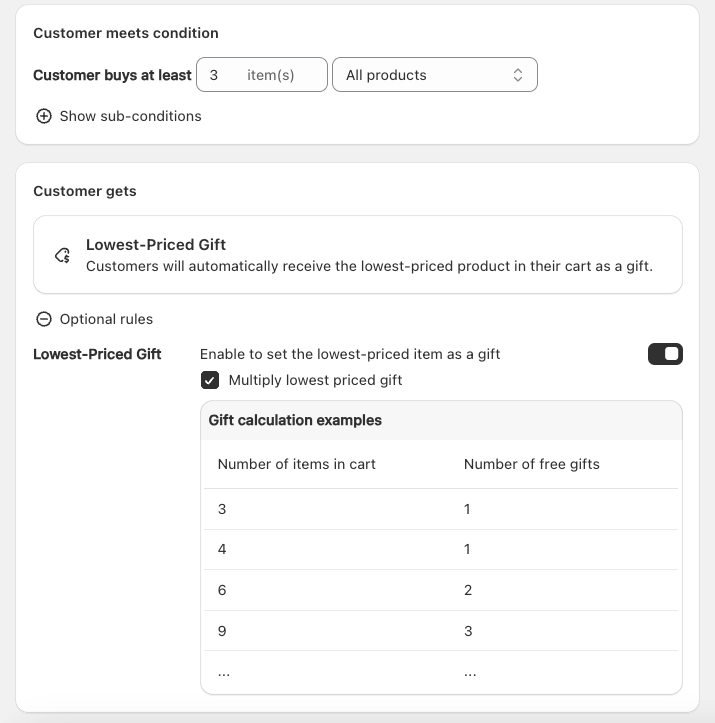
- Enable the Multiply lowest-priced gift option.
- Save and activate the campaign.
-
When enabled, a calculation example table appears showing how many gifts customers will get. This is the gift calculation example when item quantity required in campaign is 3 item